A deep technical guide to Client-Side and Server-Side Google Tag Manager. Learn how tracking works, compare architectures, understand privacy and performance impacts, and build a scalable analytics setup with GA4.

A deep technical guide to Client-Side and Server-Side Google Tag Manager. Learn how tracking works, compare architectures, understand privacy and performance impacts, and build a scalable analytics setup with GA4.
Published on 6/11/2026
Every modern website depends on analytics.
Whether you run an e-commerce store, SaaS platform, content website, or marketing landing page, you need to understand what users are doing:
Tools like Google Analytics 4 (GA4), Google Ads, Meta Ads, and other marketing platforms help answer these questions.
But collecting this data has become more challenging.
Modern browsers are becoming more privacy-focused. Users are installing ad blockers. Third-party cookies are disappearing. Marketing platforms are receiving less reliable data.
This is where the tracking architecture matters.
Today, there are two major approaches:
Both help manage tracking, but they work in completely different ways.
In this guide, we will understand:
Which approach is best for your business
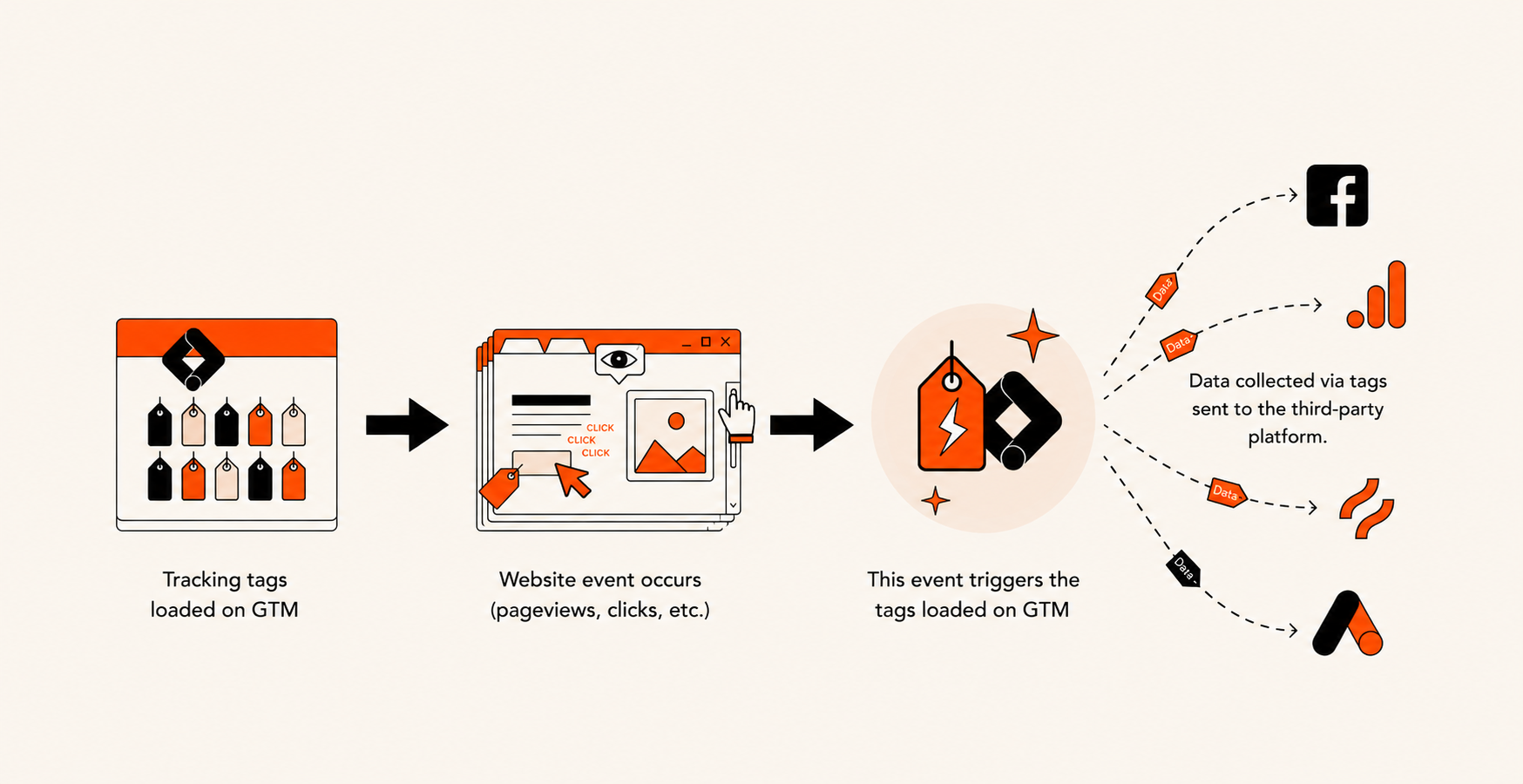
Google Tag Manager is a tag management system that allows you to add and manage tracking scripts without manually modifying your website code every time.
Normally, adding analytics requires developers to add multiple scripts:
With GTM, you install one container and manage all tracking from a single dashboard.
Think of GTM as a middle layer between your website and analytics platforms.
Instead of:
Website → Google Analytics
Website → Meta
Website → Ads
You get:
Website
|
▼
Google Tag Manager
|
├── Google Analytics
├── Google Ads
├── Meta
└── Other tools
Before understanding architectures, you should know three important GTM concepts.
Tags are scripts that send information.
Examples:
Example:
User clicks Buy Now
↓
Purchase Tag fires
↓
GA4 receives event
Triggers decide when a tag should run.
Examples:
Variables store dynamic information.
Examples:
Google Tag Manager supports two main approaches:
Client-Side GTM: The traditional browser-based approach
Server-Side GTM: The modern server-based approach.
Let's understand both.
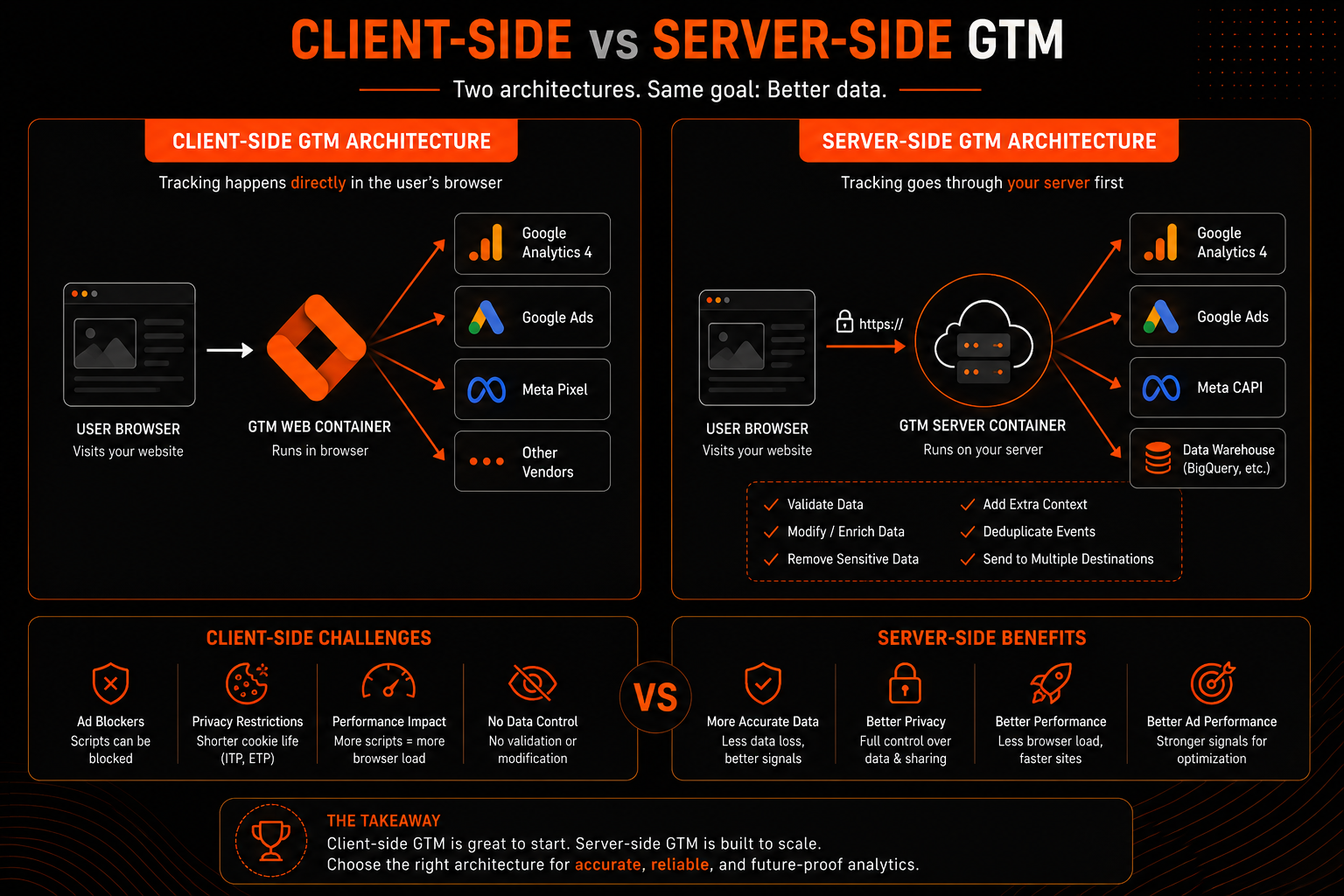
Client-side tracking means tracking happens directly inside the user's browser.
When someone visits your website:
The flow looks like:
User Browser
↓
GTM Web Container
↓
Google Analytics / Meta / Google Ads /Other Vendors
Imagine a customer purchases a product.
Your website sends:
```
window.dataLayer = window.dataLayer || [];
dataLayer.push({
event: "purchase",
transaction_id: "ORDER_123",
value: 4999,
currency: "INR"
});
```
GTM detects the event.
Then it sends:
Purchase Event
↓
GA4
↓
Google Ads
↓
Meta Pixel
Create a GTM account.
Choose:
Container Type:
Web
GTM provides two snippets:
One for:
<head>
One for:
<body>
Add these to your website.
Examples:
GA4:
Track page views
Track events
Track conversions
Google Ads:
Track purchases
Track leads
Meta:
Track visitors
Track purchases
Example:
Trigger:
User clicks checkout button
↓
Fire conversion tag
Use:
Tag Assistant
The biggest advantage is simplicity.
You do not need:
A developer installs GTM once, and marketing teams can manage tracking afterward.
Client-side GTM does not require hosting.
For small websites, it is usually enough.
GTM supports many platforms:
GTM Preview makes debugging simple.
You can see:
Client-side tracking worked great for years.
But the web has changed.
Many users block tracking scripts.
Examples:
Result:
A user purchases something.
But your analytics never receives the conversion.
This creates:
Actual Sales: 100
Tracked Sales: 70
Browsers are limiting tracking.
Examples:
Third-party cookies have shorter lifetimes.
This affects:
Every tracking script runs inside the browser.
More scripts mean:
Example:
Website Code + GTM + GA4 + Meta Pixel + Heatmap Script = More Browser Work
Data goes directly from browser to vendor.
You cannot easily:
Server-side GTM moves tracking from the browser to your own server.
Instead of sending data directly to vendors:
Browser
↓
Google Analytics
You send data first to your server:
Browser
↓
Your GTM Server
↓
Analytics Platforms
Your server becomes a controlled tracking layer.
Example:
A user completes checkout.
Browser sends:
Purchase Event
to:
tracking.yourdomain.com
Your server receives it.
Before sending:
You can:
Then forward:
GA4
Google Ads
Meta CAPI
Data Warehouse
Create a new GTM container:
Container Type:
Server
Common hosting options:
Example:
analytics.yourdomain.com
This makes tracking first-party.
Your website sends events to:
analytics.yourdomain.com
Instead of:
google-analytics.com
Examples:
Meta Conversion API
For businesses running ads, data accuracy matters.
Lost conversions mean:
Server-side tracking helps recover more reliable signals.
Server-side GTM supports:
Meta Conversion API.
Benefits:
Your domain handles tracking.
Example:
yourdomain.com
instead of:
third-party-domain.com
This improves tracking stability.
You decide what data gets shared.
Example:
Remove:
Phone
Personal information
Or transform it:
Hash user information
You can improve incoming data.
Example:
Incoming:
price = 4999
Server adds:
currency = INR
country = India
Important for:
Meta Pixel + CAPI
Avoid:
One Purchase Counting Twice
You need knowledge of:
Unlike client-side GTM, you need hosting.
More Maintenance
You need to manage:
| Feature | Client-Side GTM | Server-Side GTM |
|---|---|---|
| Setup | Easy | Advanced |
| Cost | Free | Hosting cost |
| Performance | More browser load | Less browser load |
| Privacy | Less control | More control |
| Data validation | No | Yes |
| Ad blockers | Easily blocked | More resistant |
| Scaling | Limited | Better |
| Best for | Small websites | Growing businesses |
Client-side GTM is still useful and remains the easiest way to start tracking.
But the future of analytics is moving toward server-side tracking.
As privacy rules increase and advertising becomes more data-driven, businesses need a system that provides:
The goal is not simply collecting more data.
The goal is collecting the right data — accurately, securely, and efficiently.
Please log in to give your feedback and join the discussion.
Join the conversation! Sign in to react and share your thoughts.
Join the conversation and share your thoughts about this article.
Be the first to share your thoughts about this article. Your comment helps build a community discussion.